
Fair Chase Pro is the Boone and Crockett Club’s online home for Fair Chase magazine. Read or listen to an issue, save favorites and playlists, search the archive, explore trophy records, and share articles with friends.
Start here: Sign in, choose Magazine, open an issue, then select Flipbook, Article, or Playlist. To listen, press Play or Listen Now.
1. Quick start: read or listen
Open a magazine
- Select Sign In and use the same account you use on boone-crockett.org.
- Select Magazine.
- Choose a cover, or select View all articles to preview its contents.
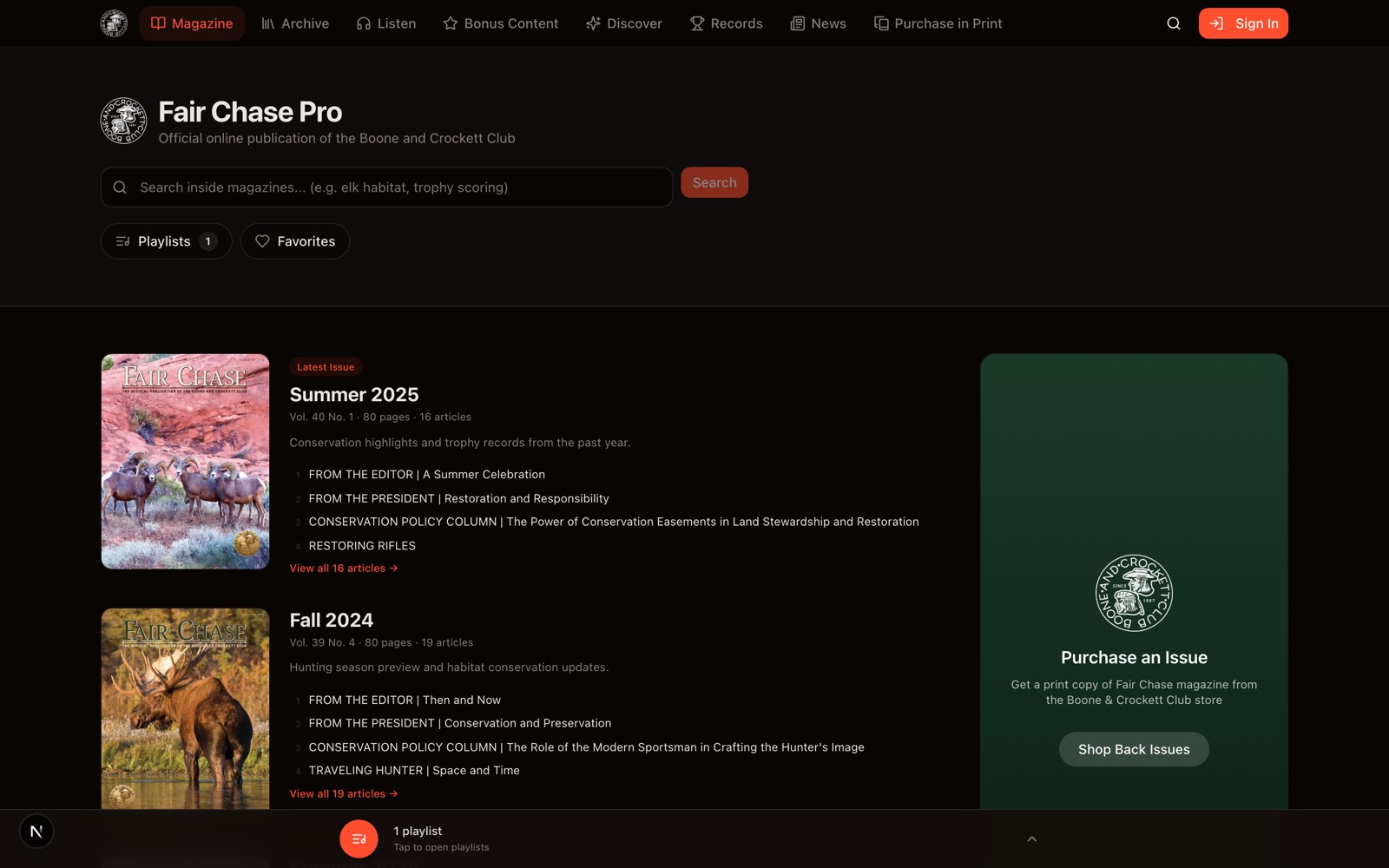
An active Fair Chase Pro subscription is required to open complete issues and use subscriber features.
Choose how to enjoy the issue

| Choose | To |
|---|---|
| Flipbook | Turn through the issue as it appeared in print |
| Article | Read an individual story in a clean text view |
| Playlist | See narrated stories and select Play All |
You can also select Play or Listen Now beside an article. The arrow at the left returns to all issues.
The shortest path
- To read: Magazine → choose an issue → Flipbook or Article
- To listen: Magazine → choose an issue → Playlist → Play All
- To continue listening: Listen → Continue Listening
2. Sign in and get around
Signing in
- Select Sign In.
- Enter the username or email and password you use on boone-crockett.org.
- Select Sign In again. You will return to the page you were trying to open. If you need a subscription, select Subscribe now on that page.
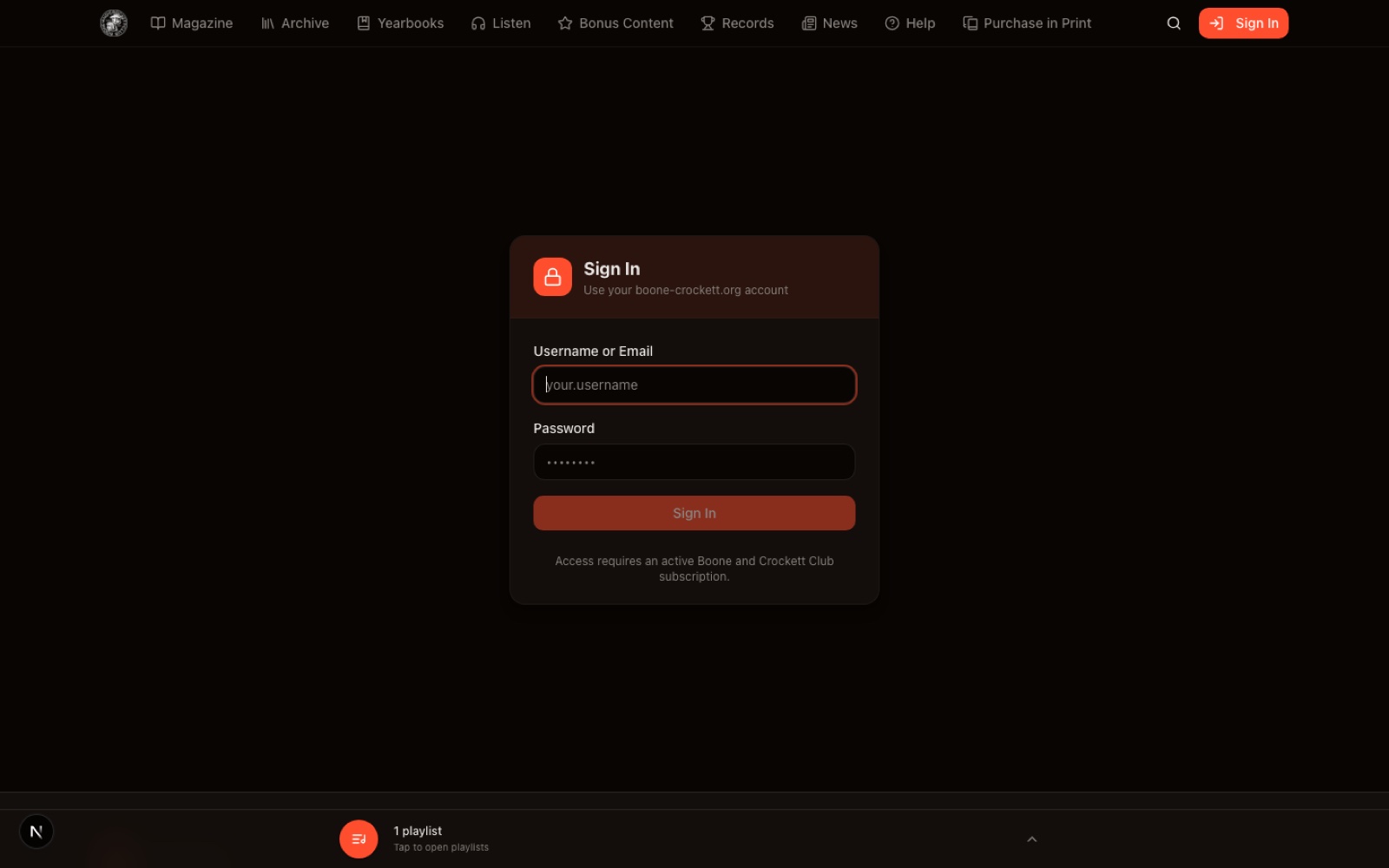
There is no separate Fair Chase Pro password. Reset passwords and manage account information at boone-crockett.org.
To sign out, select your name near the top of the page, or open the phone menu, then select Sign Out.
Access and subscriptions
- Visitors can browse covers, search, read news, view the records list, and open gift links.
- Active subscribers can read complete issues, listen, save favorites, create playlists, gift articles, and open complete trophy pages.
- If you see Subscribers only, select Sign In, Subscribe, or Not now to keep browsing.
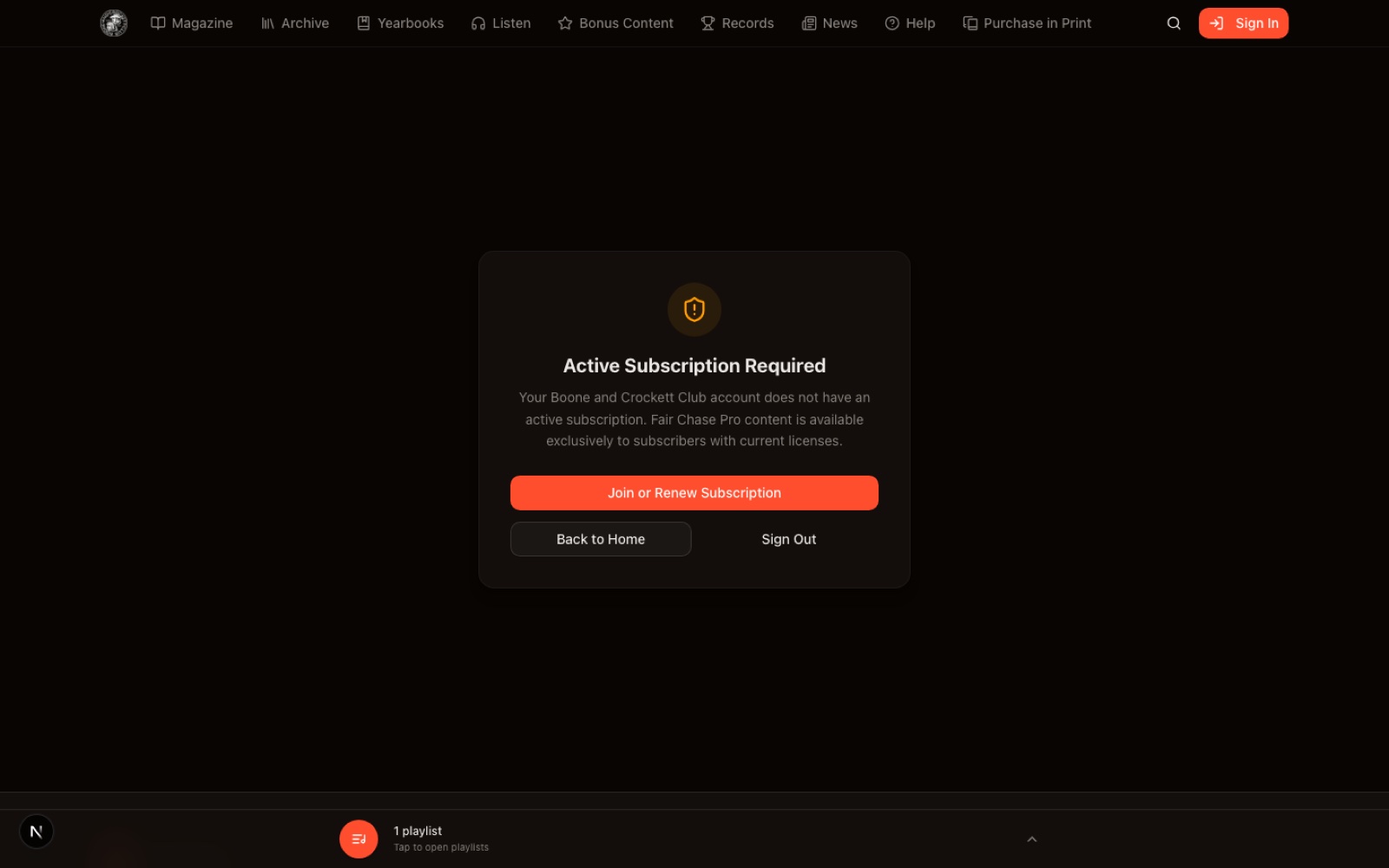
- If you see Active Subscription Required, your account is recognized but does not show an active subscription. Select Join or Renew Subscription, or sign out and try another account.
Navigation
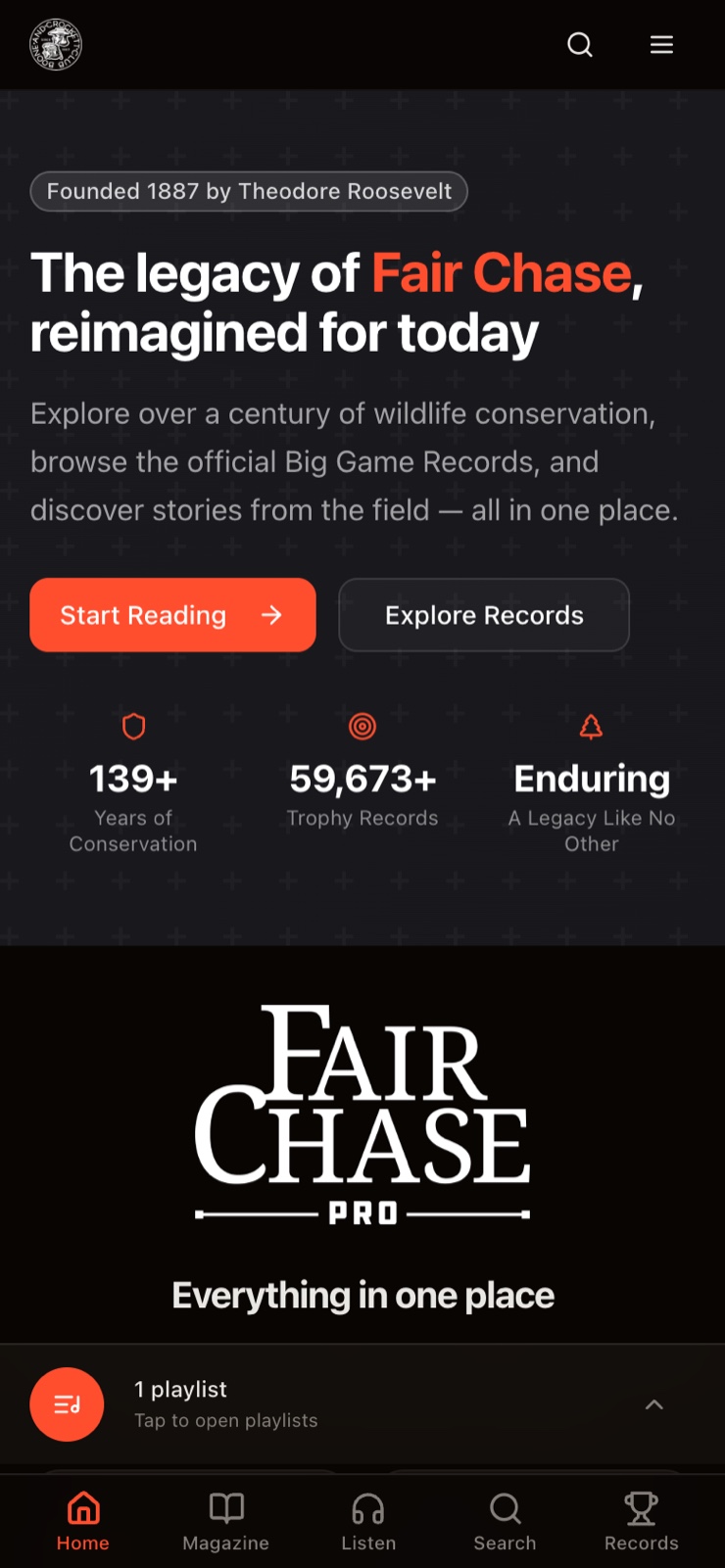
On a computer, use the menu across the top. On a phone, use Home, Magazine, Listen, Search, and Records at the bottom. The menu at the top contains Archive, Yearbooks, Bonus Content, News, Help, Purchase in Print, and account options.
3. Read the magazine
Use the Flipbook
Choose Flipbook for the print-magazine experience.
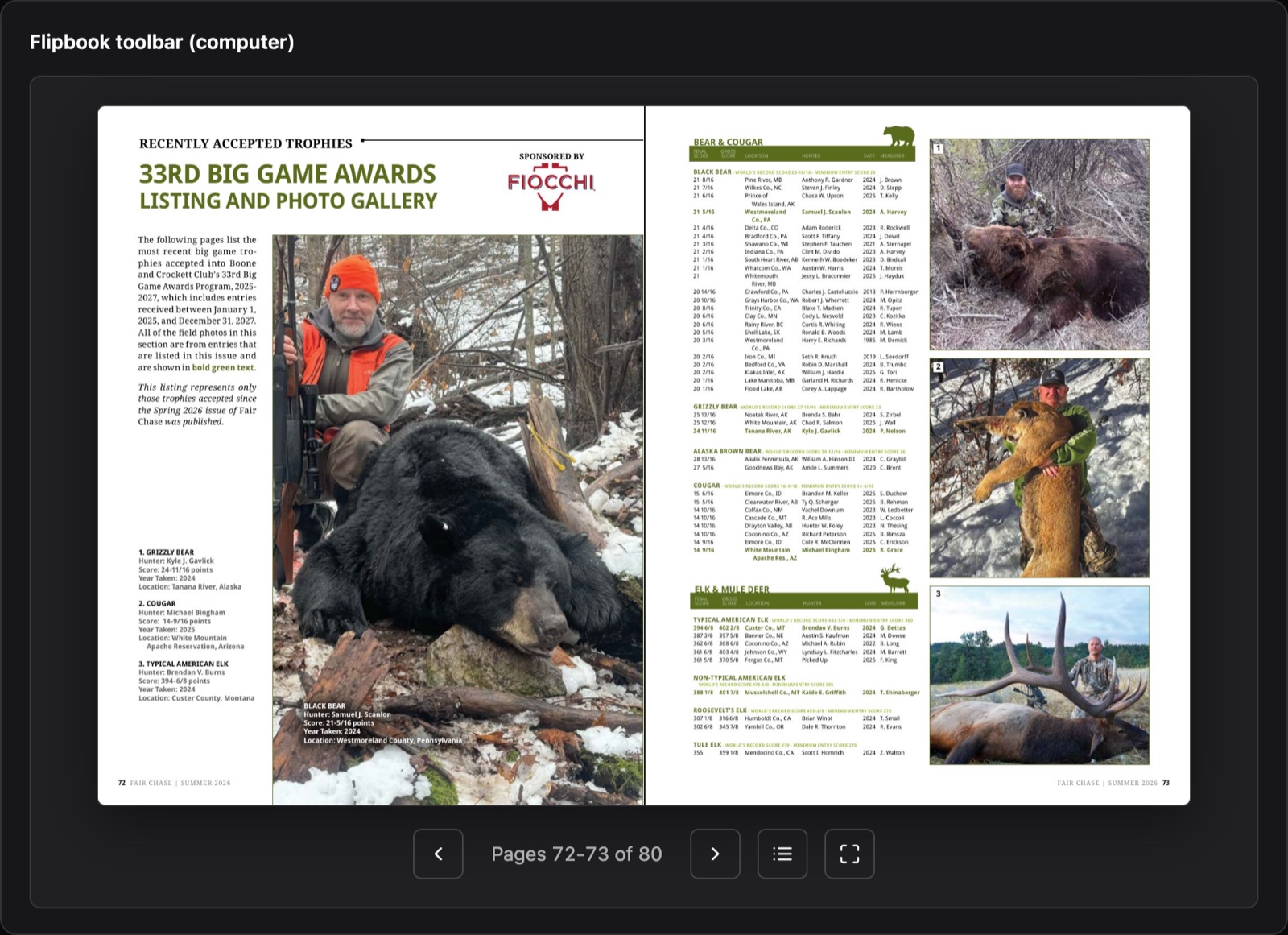
On a computer:
- Use the left and right arrows to turn pages.
- Select the page number to see your position in the issue.
- Open Table of Contents to jump to a story or select Play All.
- Select Fullscreen for a larger view.
- You can also click a page corner or drag to turn the page.
When a page contains an article, its reading, listening, favorite, gift, and trophy actions may appear below the Flipbook.
Read on a phone
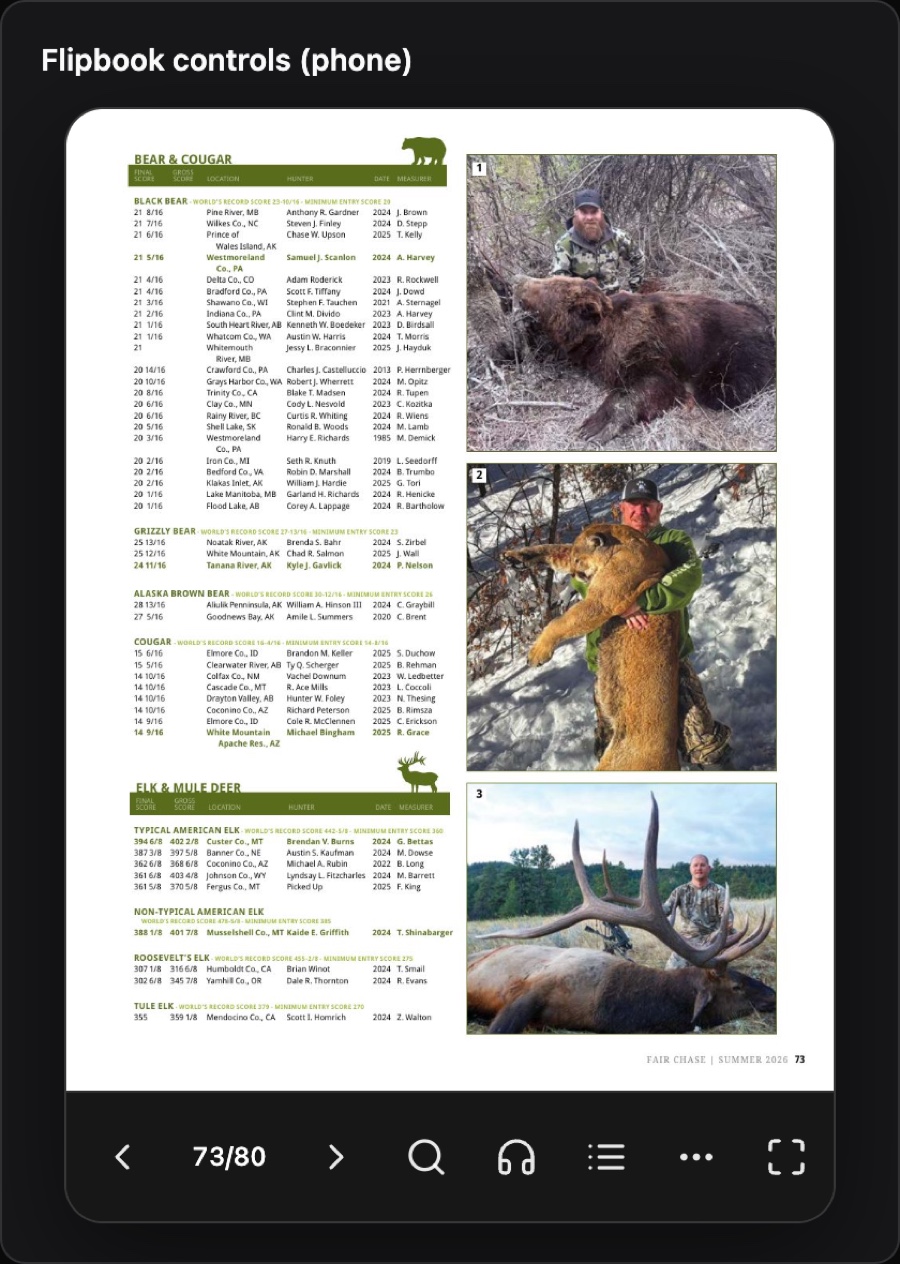
The bottom control bar provides previous and next page, page jump, search, audio, table of contents, more options, and fullscreen. Select ⋯ to read the article, gift it, return to all issues, open Listen, download the PDF, or open the table of contents.
Double-tap a page to zoom. Turn the phone sideways or use Fullscreen for easier reading. Photo galleries and trophy lists may be available only in the Flipbook.
Read an article
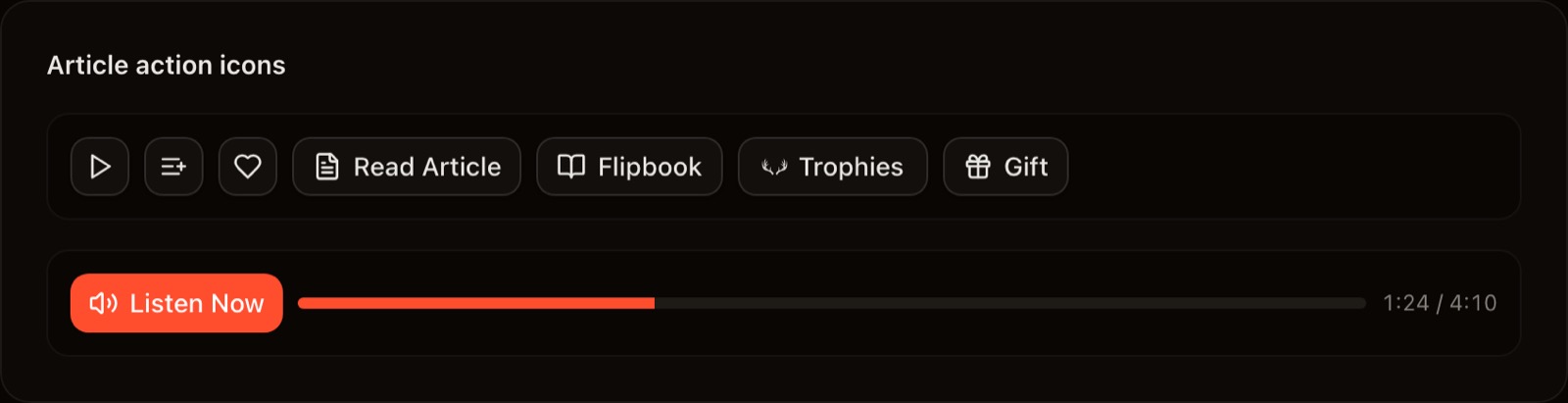
Choose Article to read a story as clean text. Available actions may include Listen Now, Favorite, Add to playlist, Flipbook, Gift, and Trophies.
4. Listen
Select Listen for the complete audio library, or select Play or Listen Now from a magazine article.
From Listen you can:
- Open the Library of narrated issues
- Resume from Continue Listening
- Browse an issue and play one article
- Select Play All to hear an issue in order
- Open playlists and favorites
Short sponsored messages may play between stories. Listening requires an internet connection.
Playback while browsing Magazine
When audio plays outside Listen, a compact bar stays at the bottom of the page.

Use it to play or pause, skip to the next track, open Listen, open playlists, or stop playback. Select the title area for more options.
Playback inside Listen
Inside Listen, the Now Playing bar controls the current audio. Playlists are opened elsewhere on the Listen page.

- Orange button: play or pause
- Skip: move to the next item when a queue is active
- Speed: cycle through playback speeds such as 1.25x
- Title: see the article or sponsored message playing
- Progress bar: move forward or backward
5. Save favorites and build playlists
Favorites and playlists follow your signed-in account across computers, phones, and tablets.
| Feature | Best for | How to save |
|---|---|---|
| Favorites | A quick “save for later” collection | Select the heart beside an article |
| Playlists | Named listening queues, such as “Elk features” | Select Add to playlist or Create Playlist |
Create or open a playlist
Open Playlists from Magazine, Listen, an issue, or the bottom audio bar.
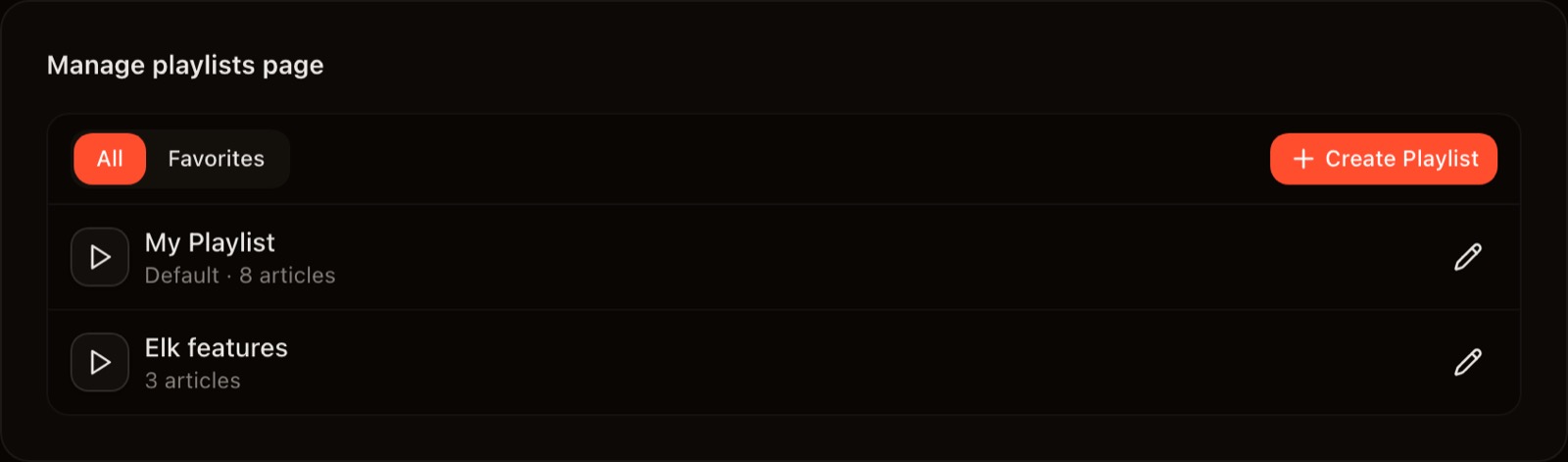
- Select Create Playlist.
- Enter a name.
- Search for articles and select Add, or save an empty playlist.
- Select Save playlist.
To add an article later, select Add to playlist, choose a list, or create a new one. A check mark means the article is already in that list. One article can belong to more than one playlist.
Play and manage lists
- Select Play All for every narrated article in an issue.
- Select Play beside a named playlist to hear that list.
- Select a playlist name to open it.
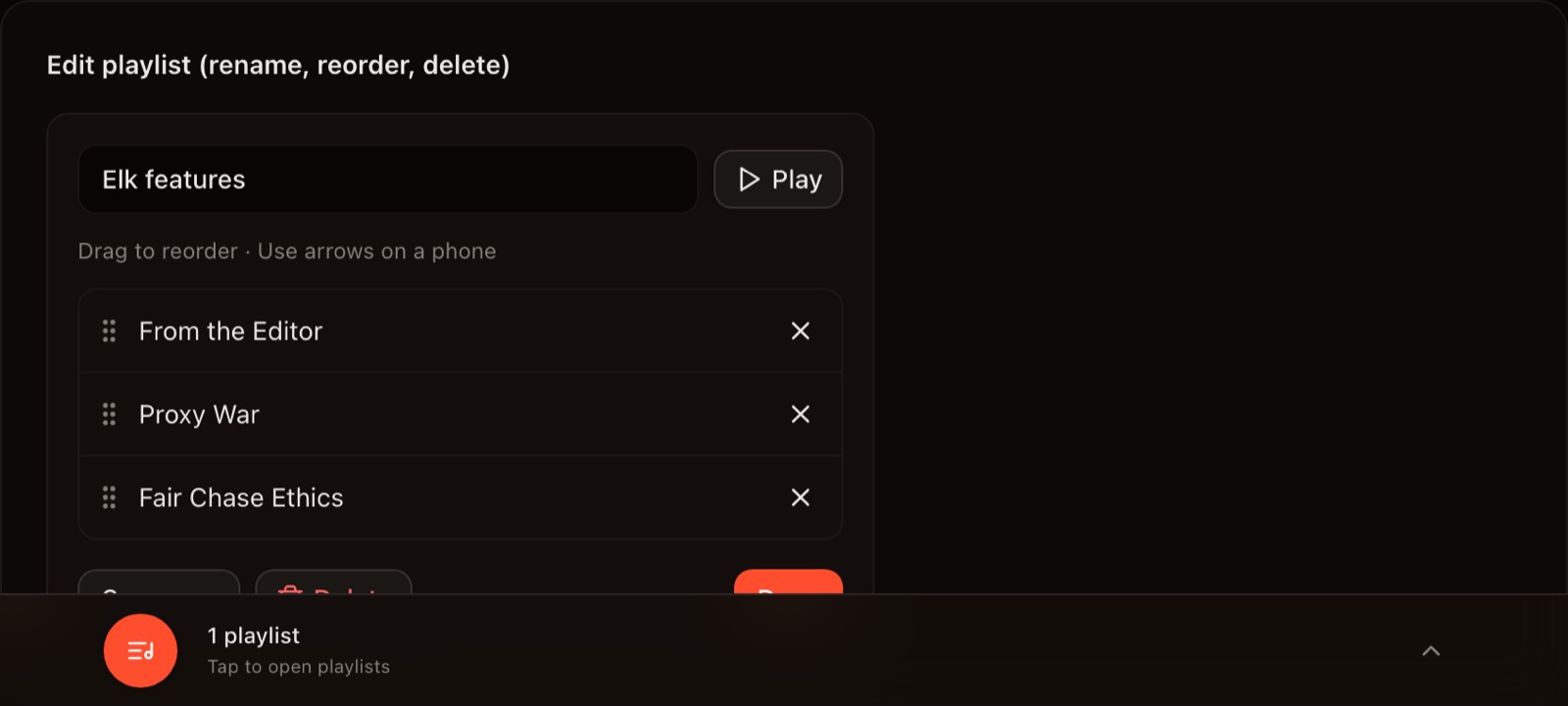
- Select the pencil to rename, reorder, copy, or delete it.
- Drag the grip to reorder on a computer. On a phone, use Move up or Move down under ⋯.
- Select X to remove an article from a list. This does not remove it from the magazine.
If a list created on one device does not appear on another, confirm both devices use the same account, open Playlists, and allow a moment for synchronization.
6. Share a gifted article
Subscribers can send friends gift links for magazine articles. Up to 1 article per month (each link opens one article). Your friend does not need to be a subscriber or sign in to read or listen to that article. Share the link by email, text, or on social media to spread a story you love.
Send a gift
- Sign in and open an article.
- Select Gift or Gift this article.
- Select Copy when the link is ready.
- Send the link by email or text, or post it on social media.
Each gift link lasts 30 days. You can create up to 1 gift link per calendar month. The Gift button shows how many you have left.
Friends who open a valid gift link can read the article and use Listen Now without signing in.
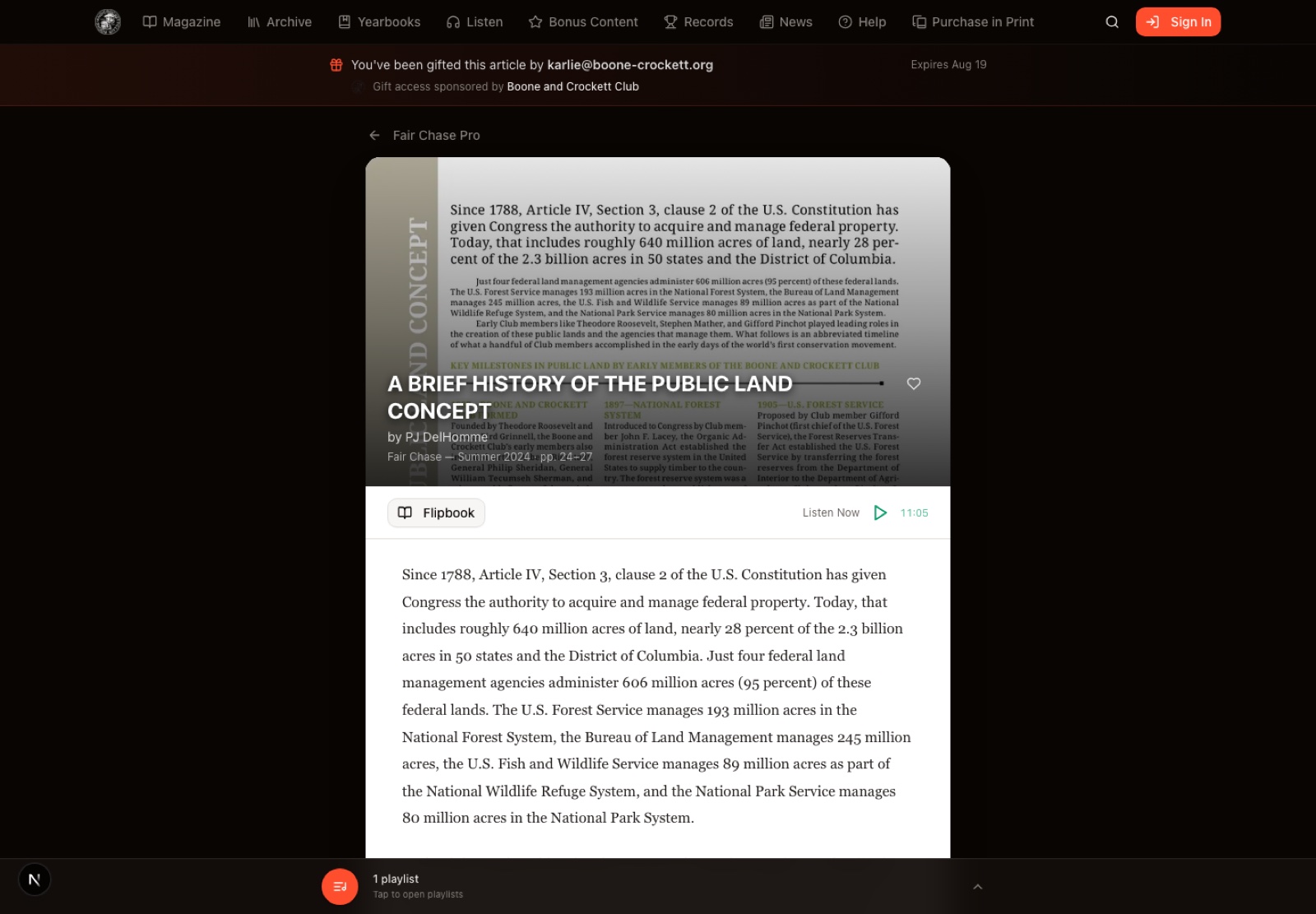
Pasting a gift link into most social platforms creates a preview with the article title and image. Only the gifted article is unlocked. Other subscriber content still requires sign-in.
If Gift is missing, sign in first. Gifting may also be temporarily disabled. If a link has expired, create and send a new one.
7. Search and explore
Search
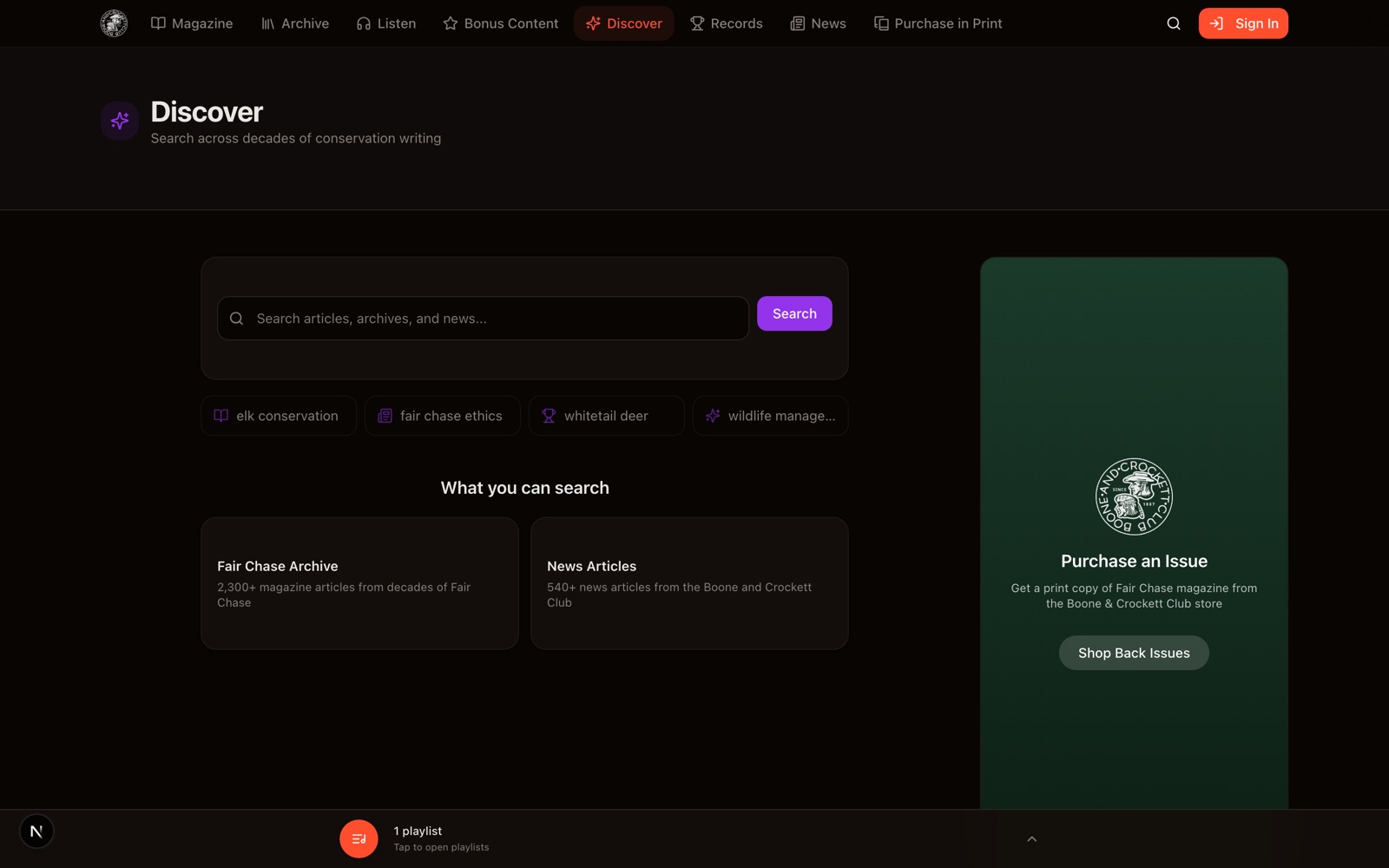
Select the magnifying glass, or Search on a phone. Enter a subject such as “elk conservation,” browse the results, and select one to open it. Search covers Fair Chase writing and Club news. Use Records to search trophy records.
Archive, Yearbooks, News, and Bonus Content
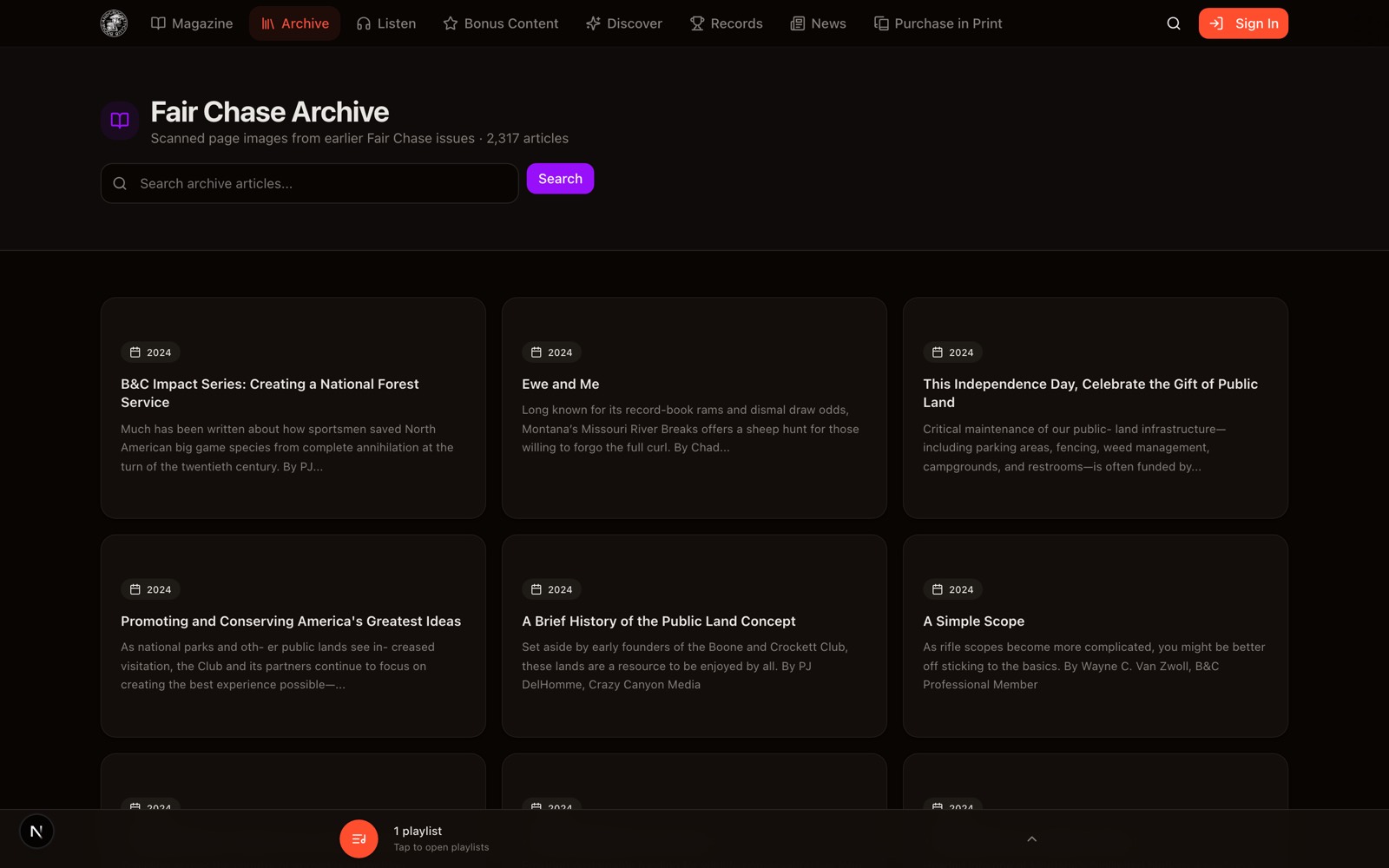
- Archive: Browse scanned historical Fair Chase pages. Search or page through the results, then select an item to view it.
- Yearbooks: Browse Boone and Crockett Club yearbooks.
- News: Read current Club news and announcements.
- Bonus Content: Open additional articles available to qualifying subscribers.
Trophy records
Select Records to open Big Game Records Live Lite.
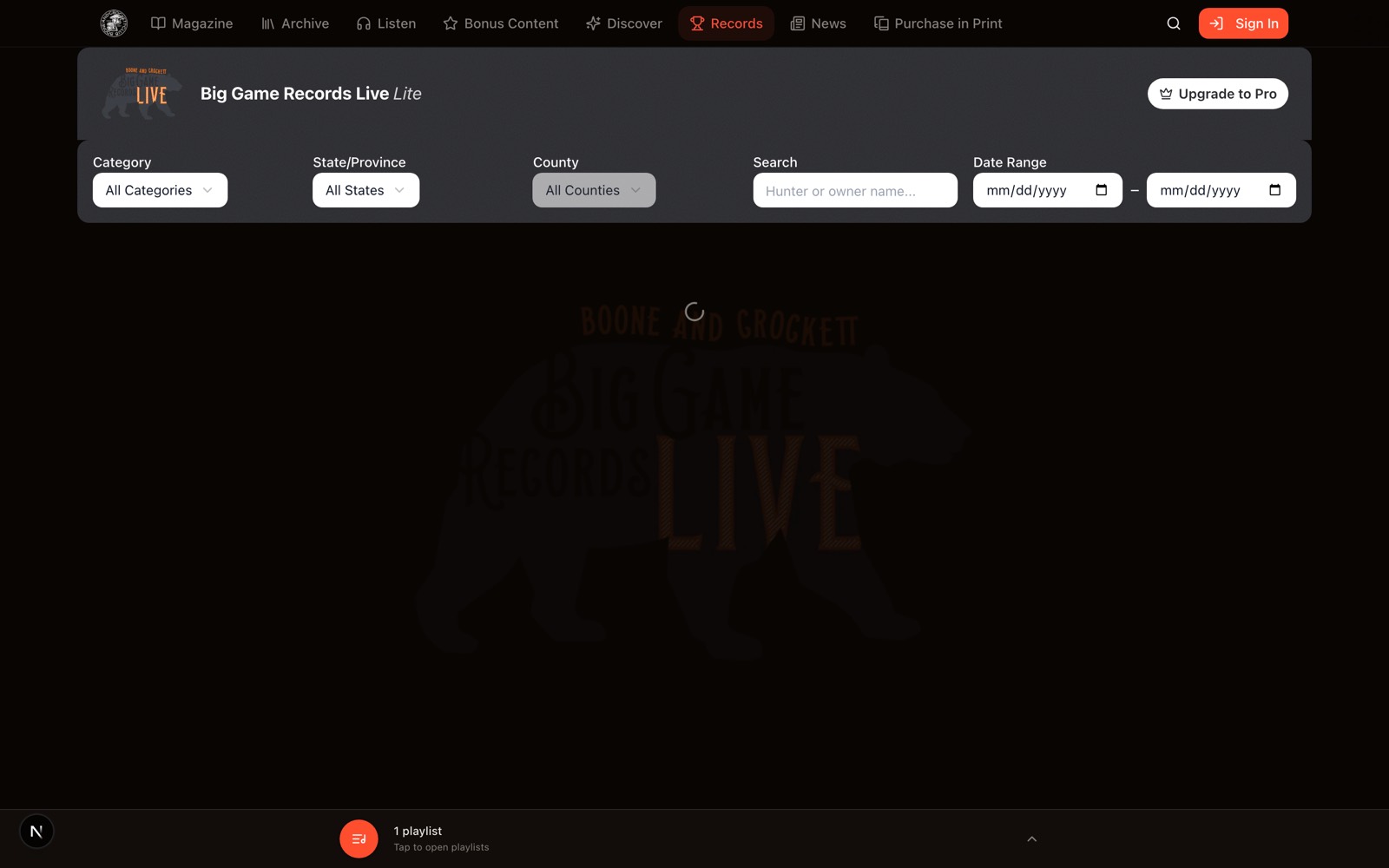
Filter by category, location, hunter or owner, and date. Select a column heading to sort, Clear Filters to start over, or a row to open trophy details. Complete trophy pages require an active subscription.
An article that mentions trophies may open Records with those animals already selected. Use Back to Article to return or All Records to clear the selection.
For interactive maps, advanced search, score analysis, harvest trends, and other research tools, select Upgrade to Pro. If your account already includes Big Game Records Live Pro, select Open Pro to visit live.boone-crockett.org.
Store links
These options open the Boone and Crockett store:
- Subscribe or Join or Renew Subscription: subscription signup and renewal
- Purchase in Print or Shop Back Issues: printed magazines and back issues
- Upgrade to Pro: Big Game Records Live Pro
After a purchase or renewal, return to Fair Chase Pro and sign in with the same Club account.
8. Reference and help
Icon guide
The same controls appear throughout Magazine, Listen, and Playlists.
Add Fair Chase Audio to your home screen
Open fairchase.org/listen first.
iPhone or iPad using Safari
- Select the Share button.
- Select Add to Home Screen.
- Select Add.
Android using Chrome
- Open the Chrome menu (⋮).
- Select Install app or Add to Home screen.
- Confirm.
You can then open Fair Chase Audio from its icon and sign in normally.
Troubleshooting
| Problem | What to do |
|---|---|
| Username or password is not accepted | Use the same login as boone-crockett.org. Reset your password there if needed. |
| Active Subscription Required after signing in | Join or renew, wait a few minutes, then sign out and sign in again. |
| Subscribers only keeps appearing | Sign in, or select Not now to continue browsing. |
| An issue will not open | Confirm you are signed in with an active subscription. |
| A playlist is missing on another device | Use the same account on both devices, open Playlists, wait a moment, and refresh. |
| The Gift button is missing | Sign in. Gifting may also be temporarily disabled. |
| A gift link does not work | The link may have expired. Ask the sender for a new one. |
| Audio will not play | Check your connection. Some photo-only pages do not have audio. |
| You’re offline appears | Reconnect to the internet and select Try again. |
| A complete trophy page will not open | Sign in with an active subscription. |
| A page is blank or stuck | Refresh the page or try another browser. |
Still need help? Email [email protected].
Fair Chase Pro is the digital companion to Fair Chase magazine from the Boone and Crockett Club.